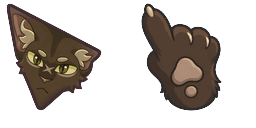

カーソルプレビュー: Cat - 1 - cute-cursor.com

カーソルパック

Cat

Cute Animals1663回追加されました

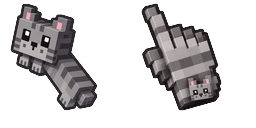
Orange cat cursor for Chrome - curious feline pointer with whisker hover hand. Cute pet animal fan art.

拡張機能に追加

Pointer side shows Orange cat pointer. Hover swaps to whisker hover hand. Works in Chrome through the Cute Cursor extension. Apply through Cute Cursor — pointer and hover download as one pack. Install through the Cute Cursor extension in Chrome. Both the default arrow and hover hand update when you apply the pack.

カーソルファイル

ファイルをダウンロードするか、正しいホットスポットが設定済みのCSS、JavaScript、React、Robloxコードをそのままコピーしてご利用いただけます。

カーソル - 1 - cute-cursor.com

カーソル

ファイルをダウンロードするか、ウェブサイト、React、JavaScript、Roblox用の埋め込みコードをコピーしてください。

このCSSをスタイルシートに貼り付けてください。ホットスポットの座標は既に含まれています。

.custom-cursor {
  cursor: url('https://cute-cursor.com/cdn/packs/108/arrow.png') 0 0, auto;
}

このJavaScriptを貼り付けると、正しいホットスポットでカーソルが適用されます。

const CURSOR_URL = 'https://cute-cursor.com/cdn/packs/108/arrow.png';
const HOTSPOT_X = 0;
const HOTSPOT_Y = 0;
const CURSOR_FALLBACK = 'auto';

const cursorValue = `url('${CURSOR_URL}') ${HOTSPOT_X} ${HOTSPOT_Y}, ${CURSOR_FALLBACK}`;

// Apply to the whole page
document.body.style.cursor = cursorValue;

// Or apply to a specific element
// const target = document.querySelector('.my-element');
// if (target) target.style.cursor = cursorValue;

このReactコンポーネントをコピーし、コンテンツをその中にラップしてください。

import React from 'react';

const CURSOR_URL = 'https://cute-cursor.com/cdn/packs/108/arrow.png';
const HOTSPOT_X = 0;
const HOTSPOT_Y = 0;
const CURSOR_FALLBACK = 'auto';

export default function CustomCursor({ children, className = '', as: Tag = 'div', style = {}, ...props }) {
  const cursorStyle = {
    cursor: `url('${CURSOR_URL}') ${HOTSPOT_X} ${HOTSPOT_Y}, ${CURSOR_FALLBACK}`,
    ...style,
  };

  return (
    <Tag className={className} style={cursorStyle} {...props}>
      {children}
    </Tag>
  );
}

// Usage:
// <CustomCursor>Your content</CustomCursor>

画像をRobloxにアップロードし、YOUR_ASSET_IDを置き換えてから、このLocalScriptを貼り付けてください。

-- Roblox custom cursor
-- Image URL: https://cute-cursor.com/cdn/packs/108/arrow.png
-- Hotspot: 0, 0
-- Size: 128x128
-- 1. Upload the image to Roblox and copy rbxassetid
-- 2. Replace YOUR_ASSET_ID below
-- 3. Put this LocalScript in StarterPlayer > StarterPlayerScripts

local UserInputService = game:GetService("UserInputService")
local RunService = game:GetService("RunService")
local Players = game:GetService("Players")

local player = Players.LocalPlayer
local playerGui = player:WaitForChild("PlayerGui")

local HOTSPOT_X = 0
local HOTSPOT_Y = 0
local CURSOR_WIDTH = 128
local CURSOR_HEIGHT = 128

local screenGui = Instance.new("ScreenGui")
screenGui.Name = "CustomCursorGui"
screenGui.ResetOnSpawn = false
screenGui.IgnoreGuiInset = true
screenGui.DisplayOrder = 999999
screenGui.Parent = playerGui

local cursor = Instance.new("ImageLabel")
cursor.Name = "CustomCursor"
cursor.BackgroundTransparency = 1
cursor.Size = UDim2.fromOffset(CURSOR_WIDTH, CURSOR_HEIGHT)
cursor.Image = "rbxassetid://YOUR_ASSET_ID"
cursor.ZIndex = 999999
cursor.Parent = screenGui

UserInputService.MouseIconEnabled = false

RunService.RenderStepped:Connect(function()
    local mouseLocation = UserInputService:GetMouseLocation()
    cursor.Position = UDim2.fromOffset(mouseLocation.X - HOTSPOT_X, mouseLocation.Y - HOTSPOT_Y)
end)
ポインター - 2 - cute-cursor.com

ポインター

ファイルをダウンロードするか、ウェブサイト、React、JavaScript、Roblox用の埋め込みコードをコピーしてください。

このCSSをスタイルシートに貼り付けてください。ホットスポットの座標は既に含まれています。

.custom-pointer {
  cursor: url('https://cute-cursor.com/cdn/packs/108/hand.png') 0 0, pointer;
}

このJavaScriptを貼り付けると、正しいホットスポットでカーソルが適用されます。

const CURSOR_URL = 'https://cute-cursor.com/cdn/packs/108/hand.png';
const HOTSPOT_X = 0;
const HOTSPOT_Y = 0;
const CURSOR_FALLBACK = 'pointer';

const cursorValue = `url('${CURSOR_URL}') ${HOTSPOT_X} ${HOTSPOT_Y}, ${CURSOR_FALLBACK}`;

// Apply to the whole page
document.body.style.cursor = cursorValue;

// Or apply to a specific element
// const target = document.querySelector('.my-element');
// if (target) target.style.cursor = cursorValue;

このReactコンポーネントをコピーし、コンテンツをその中にラップしてください。

import React from 'react';

const CURSOR_URL = 'https://cute-cursor.com/cdn/packs/108/hand.png';
const HOTSPOT_X = 0;
const HOTSPOT_Y = 0;
const CURSOR_FALLBACK = 'pointer';

export default function CustomPointer({ children, className = '', as: Tag = 'div', style = {}, ...props }) {
  const cursorStyle = {
    cursor: `url('${CURSOR_URL}') ${HOTSPOT_X} ${HOTSPOT_Y}, ${CURSOR_FALLBACK}`,
    ...style,
  };

  return (
    <Tag className={className} style={cursorStyle} {...props}>
      {children}
    </Tag>
  );
}

// Usage:
// <CustomPointer>Your content</CustomPointer>

画像をRobloxにアップロードし、YOUR_ASSET_IDを置き換えてから、このLocalScriptを貼り付けてください。

-- Roblox custom cursor
-- Image URL: https://cute-cursor.com/cdn/packs/108/hand.png
-- Hotspot: 0, 0
-- Size: 128x128
-- 1. Upload the image to Roblox and copy rbxassetid
-- 2. Replace YOUR_ASSET_ID below
-- 3. Put this LocalScript in StarterPlayer > StarterPlayerScripts

local UserInputService = game:GetService("UserInputService")
local RunService = game:GetService("RunService")
local Players = game:GetService("Players")

local player = Players.LocalPlayer
local playerGui = player:WaitForChild("PlayerGui")

local HOTSPOT_X = 0
local HOTSPOT_Y = 0
local CURSOR_WIDTH = 128
local CURSOR_HEIGHT = 128

local screenGui = Instance.new("ScreenGui")
screenGui.Name = "CustomCursorGui"
screenGui.ResetOnSpawn = false
screenGui.IgnoreGuiInset = true
screenGui.DisplayOrder = 999999
screenGui.Parent = playerGui

local cursor = Instance.new("ImageLabel")
cursor.Name = "CustomCursor"
cursor.BackgroundTransparency = 1
cursor.Size = UDim2.fromOffset(CURSOR_WIDTH, CURSOR_HEIGHT)
cursor.Image = "rbxassetid://YOUR_ASSET_ID"
cursor.ZIndex = 999999
cursor.Parent = screenGui

UserInputService.MouseIconEnabled = false

RunService.RenderStepped:Connect(function()
    local mouseLocation = UserInputService:GetMouseLocation()
    cursor.Position = UDim2.fromOffset(mouseLocation.X - HOTSPOT_X, mouseLocation.Y - HOTSPOT_Y)
end)
100%無料

カーソルチェンジャー拡張機能を入手

Chrome用に無料でご利用いただけます。一度インストールしたら、お好きなカーソルの「追加」をクリックしてください。

Chromeにインストール