
Cursor-Paket
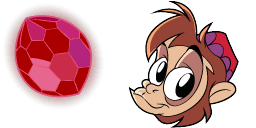
Aladdin Abu
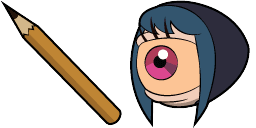
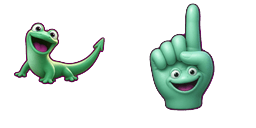
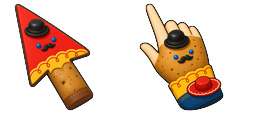
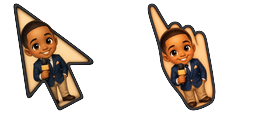
Aladdin Abu pointer for Chrome with player hover. Video game fan art.
Aladdin Abu

Cursor-Paket
Aladdin Abu pointer for Chrome with player hover. Video game fan art.
Aladdin Abu
Lade die Datei herunter oder kopiere fertigen CSS-, JavaScript-, React- und Roblox-Code mit dem richtigen Hotspot.

Lade die Datei herunter oder kopiere den Einbettungscode für deine Website, React, JavaScript oder Roblox.
Füge dieses CSS in dein Stylesheet ein. Die Hotspot-Koordinaten sind bereits enthalten.
.custom-cursor {
cursor: url('https://cute-cursor.com/cdn/packs/10085/arrow.png') 2 3, auto;
}Füge dieses JavaScript ein, um den Cursor mit dem richtigen Hotspot anzuwenden.
const CURSOR_URL = 'https://cute-cursor.com/cdn/packs/10085/arrow.png';
const HOTSPOT_X = 2;
const HOTSPOT_Y = 3;
const CURSOR_FALLBACK = 'auto';
const cursorValue = `url('${CURSOR_URL}') ${HOTSPOT_X} ${HOTSPOT_Y}, ${CURSOR_FALLBACK}`;
// Apply to the whole page
document.body.style.cursor = cursorValue;
// Or apply to a specific element
// const target = document.querySelector('.my-element');
// if (target) target.style.cursor = cursorValue;Kopiere diese React-Komponente und umschließe deinen Inhalt damit.
import React from 'react';
const CURSOR_URL = 'https://cute-cursor.com/cdn/packs/10085/arrow.png';
const HOTSPOT_X = 2;
const HOTSPOT_Y = 3;
const CURSOR_FALLBACK = 'auto';
export default function CustomCursor({ children, className = '', as: Tag = 'div', style = {}, ...props }) {
const cursorStyle = {
cursor: `url('${CURSOR_URL}') ${HOTSPOT_X} ${HOTSPOT_Y}, ${CURSOR_FALLBACK}`,
...style,
};
return (
<Tag className={className} style={cursorStyle} {...props}>
{children}
</Tag>
);
}
// Usage:
// <CustomCursor>Your content</CustomCursor>Lade das Bild zu Roblox hoch, ersetze YOUR_ASSET_ID und füge dann dieses LocalScript ein.
-- Roblox custom cursor
-- Image URL: https://cute-cursor.com/cdn/packs/10085/arrow.png
-- Hotspot: 2, 3
-- Size: 128x128
-- 1. Upload the image to Roblox and copy rbxassetid
-- 2. Replace YOUR_ASSET_ID below
-- 3. Put this LocalScript in StarterPlayer > StarterPlayerScripts
local UserInputService = game:GetService("UserInputService")
local RunService = game:GetService("RunService")
local Players = game:GetService("Players")
local player = Players.LocalPlayer
local playerGui = player:WaitForChild("PlayerGui")
local HOTSPOT_X = 2
local HOTSPOT_Y = 3
local CURSOR_WIDTH = 128
local CURSOR_HEIGHT = 128
local screenGui = Instance.new("ScreenGui")
screenGui.Name = "CustomCursorGui"
screenGui.ResetOnSpawn = false
screenGui.IgnoreGuiInset = true
screenGui.DisplayOrder = 999999
screenGui.Parent = playerGui
local cursor = Instance.new("ImageLabel")
cursor.Name = "CustomCursor"
cursor.BackgroundTransparency = 1
cursor.Size = UDim2.fromOffset(CURSOR_WIDTH, CURSOR_HEIGHT)
cursor.Image = "rbxassetid://YOUR_ASSET_ID"
cursor.ZIndex = 999999
cursor.Parent = screenGui
UserInputService.MouseIconEnabled = false
RunService.RenderStepped:Connect(function()
local mouseLocation = UserInputService:GetMouseLocation()
cursor.Position = UDim2.fromOffset(mouseLocation.X - HOTSPOT_X, mouseLocation.Y - HOTSPOT_Y)
end)
Lade die Datei herunter oder kopiere den Einbettungscode für deine Website, React, JavaScript oder Roblox.
Füge dieses CSS in dein Stylesheet ein. Die Hotspot-Koordinaten sind bereits enthalten.
.custom-pointer {
cursor: url('https://cute-cursor.com/cdn/packs/10085/hand.png') 31 9, pointer;
}Füge dieses JavaScript ein, um den Cursor mit dem richtigen Hotspot anzuwenden.
const CURSOR_URL = 'https://cute-cursor.com/cdn/packs/10085/hand.png';
const HOTSPOT_X = 31;
const HOTSPOT_Y = 9;
const CURSOR_FALLBACK = 'pointer';
const cursorValue = `url('${CURSOR_URL}') ${HOTSPOT_X} ${HOTSPOT_Y}, ${CURSOR_FALLBACK}`;
// Apply to the whole page
document.body.style.cursor = cursorValue;
// Or apply to a specific element
// const target = document.querySelector('.my-element');
// if (target) target.style.cursor = cursorValue;Kopiere diese React-Komponente und umschließe deinen Inhalt damit.
import React from 'react';
const CURSOR_URL = 'https://cute-cursor.com/cdn/packs/10085/hand.png';
const HOTSPOT_X = 31;
const HOTSPOT_Y = 9;
const CURSOR_FALLBACK = 'pointer';
export default function CustomPointer({ children, className = '', as: Tag = 'div', style = {}, ...props }) {
const cursorStyle = {
cursor: `url('${CURSOR_URL}') ${HOTSPOT_X} ${HOTSPOT_Y}, ${CURSOR_FALLBACK}`,
...style,
};
return (
<Tag className={className} style={cursorStyle} {...props}>
{children}
</Tag>
);
}
// Usage:
// <CustomPointer>Your content</CustomPointer>Lade das Bild zu Roblox hoch, ersetze YOUR_ASSET_ID und füge dann dieses LocalScript ein.
-- Roblox custom cursor
-- Image URL: https://cute-cursor.com/cdn/packs/10085/hand.png
-- Hotspot: 31, 9
-- Size: 128x128
-- 1. Upload the image to Roblox and copy rbxassetid
-- 2. Replace YOUR_ASSET_ID below
-- 3. Put this LocalScript in StarterPlayer > StarterPlayerScripts
local UserInputService = game:GetService("UserInputService")
local RunService = game:GetService("RunService")
local Players = game:GetService("Players")
local player = Players.LocalPlayer
local playerGui = player:WaitForChild("PlayerGui")
local HOTSPOT_X = 31
local HOTSPOT_Y = 9
local CURSOR_WIDTH = 128
local CURSOR_HEIGHT = 128
local screenGui = Instance.new("ScreenGui")
screenGui.Name = "CustomCursorGui"
screenGui.ResetOnSpawn = false
screenGui.IgnoreGuiInset = true
screenGui.DisplayOrder = 999999
screenGui.Parent = playerGui
local cursor = Instance.new("ImageLabel")
cursor.Name = "CustomCursor"
cursor.BackgroundTransparency = 1
cursor.Size = UDim2.fromOffset(CURSOR_WIDTH, CURSOR_HEIGHT)
cursor.Image = "rbxassetid://YOUR_ASSET_ID"
cursor.ZIndex = 999999
cursor.Parent = screenGui
UserInputService.MouseIconEnabled = false
RunService.RenderStepped:Connect(function()
local mouseLocation = UserInputService:GetMouseLocation()
cursor.Position = UDim2.fromOffset(mouseLocation.X - HOTSPOT_X, mouseLocation.Y - HOTSPOT_Y)
end)Weitere Cursor-Pakete aus der Kategorie Disney Animation und ähnlichen Stilen.
18 verwandte Cursor-Pakete
Kostenlos für Chrome. Einmal installieren, dann bei jedem gewünschten Cursor auf „Hinzufügen“ klicken.
Zu Chrome hinzufügenInstalliere unsere kostenlose Chrome-Erweiterung, um deinen Cursor anzupassen!
Erfolgreich hinzugefügt!
Danke, dass du Cursor für Browser verwendest
Installiere unsere kostenlose Chrome-Erweiterung, um deinen Cursor anzupassen!
Zu Chrome hinzufügenSupport the project. Leave 5 stars and a positive review.
Um individuelle Cursor zu verwenden, installiere eine unserer Chrome-Erweiterungen:

Installationsschritte: