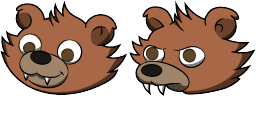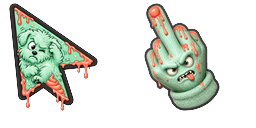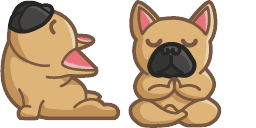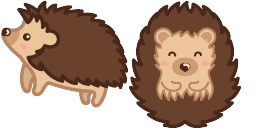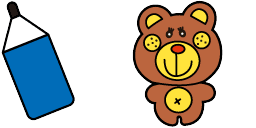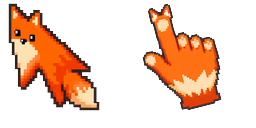
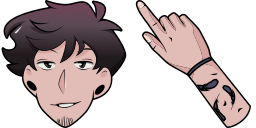
Cursor-Vorschau: Kade - 1 - cute-cursor.com

Cursor-Paket

Kade

Cute Animals15 Mal hinzugefügt

Kade cursor for Chrome - cartoon hero pointer with adventure hover hand. Animated series fan art pack.


Zur Erweiterung hinzufügen

Kade is the definition of an introvert and serves as the male protagonist of the Down To Earth Webtoon. A mouse cursor Kade and custom pointing pointer in The Wishes custom cursor collection.

Cursor-Dateien

Lade die Datei herunter oder kopiere fertigen CSS-, JavaScript-, React- und Roblox-Code mit dem richtigen Hotspot.

Cursor - 1 - cute-cursor.com

Cursor

Lade die Datei herunter oder kopiere den Einbettungscode für deine Website, React, JavaScript oder Roblox.

Füge dieses CSS in dein Stylesheet ein. Die Hotspot-Koordinaten sind bereits enthalten.

.custom-cursor {
  cursor: url('https://cute-cursor.com/cdn/packs/856/arrow.png') 45 0, auto;
}

Füge dieses JavaScript ein, um den Cursor mit dem richtigen Hotspot anzuwenden.

const CURSOR_URL = 'https://cute-cursor.com/cdn/packs/856/arrow.png';
const HOTSPOT_X = 45;
const HOTSPOT_Y = 0;
const CURSOR_FALLBACK = 'auto';

const cursorValue = `url('${CURSOR_URL}') ${HOTSPOT_X} ${HOTSPOT_Y}, ${CURSOR_FALLBACK}`;

// Apply to the whole page
document.body.style.cursor = cursorValue;

// Or apply to a specific element
// const target = document.querySelector('.my-element');
// if (target) target.style.cursor = cursorValue;

Kopiere diese React-Komponente und umschließe deinen Inhalt damit.

import React from 'react';

const CURSOR_URL = 'https://cute-cursor.com/cdn/packs/856/arrow.png';
const HOTSPOT_X = 45;
const HOTSPOT_Y = 0;
const CURSOR_FALLBACK = 'auto';

export default function CustomCursor({ children, className = '', as: Tag = 'div', style = {}, ...props }) {
  const cursorStyle = {
    cursor: `url('${CURSOR_URL}') ${HOTSPOT_X} ${HOTSPOT_Y}, ${CURSOR_FALLBACK}`,
    ...style,
  };

  return (
    <Tag className={className} style={cursorStyle} {...props}>
      {children}
    </Tag>
  );
}

// Usage:
// <CustomCursor>Your content</CustomCursor>

Lade das Bild zu Roblox hoch, ersetze YOUR_ASSET_ID und füge dann dieses LocalScript ein.

-- Roblox custom cursor
-- Image URL: https://cute-cursor.com/cdn/packs/856/arrow.png
-- Hotspot: 45, 0
-- Size: 128x128
-- 1. Upload the image to Roblox and copy rbxassetid
-- 2. Replace YOUR_ASSET_ID below
-- 3. Put this LocalScript in StarterPlayer > StarterPlayerScripts

local UserInputService = game:GetService("UserInputService")
local RunService = game:GetService("RunService")
local Players = game:GetService("Players")

local player = Players.LocalPlayer
local playerGui = player:WaitForChild("PlayerGui")

local HOTSPOT_X = 45
local HOTSPOT_Y = 0
local CURSOR_WIDTH = 128
local CURSOR_HEIGHT = 128

local screenGui = Instance.new("ScreenGui")
screenGui.Name = "CustomCursorGui"
screenGui.ResetOnSpawn = false
screenGui.IgnoreGuiInset = true
screenGui.DisplayOrder = 999999
screenGui.Parent = playerGui

local cursor = Instance.new("ImageLabel")
cursor.Name = "CustomCursor"
cursor.BackgroundTransparency = 1
cursor.Size = UDim2.fromOffset(CURSOR_WIDTH, CURSOR_HEIGHT)
cursor.Image = "rbxassetid://YOUR_ASSET_ID"
cursor.ZIndex = 999999
cursor.Parent = screenGui

UserInputService.MouseIconEnabled = false

RunService.RenderStepped:Connect(function()
    local mouseLocation = UserInputService:GetMouseLocation()
    cursor.Position = UDim2.fromOffset(mouseLocation.X - HOTSPOT_X, mouseLocation.Y - HOTSPOT_Y)
end)
Zeiger - 2 - cute-cursor.com

Zeiger

Lade die Datei herunter oder kopiere den Einbettungscode für deine Website, React, JavaScript oder Roblox.

Füge dieses CSS in dein Stylesheet ein. Die Hotspot-Koordinaten sind bereits enthalten.

.custom-pointer {
  cursor: url('https://cute-cursor.com/cdn/packs/856/hand.png') 9 0, pointer;
}

Füge dieses JavaScript ein, um den Cursor mit dem richtigen Hotspot anzuwenden.

const CURSOR_URL = 'https://cute-cursor.com/cdn/packs/856/hand.png';
const HOTSPOT_X = 9;
const HOTSPOT_Y = 0;
const CURSOR_FALLBACK = 'pointer';

const cursorValue = `url('${CURSOR_URL}') ${HOTSPOT_X} ${HOTSPOT_Y}, ${CURSOR_FALLBACK}`;

// Apply to the whole page
document.body.style.cursor = cursorValue;

// Or apply to a specific element
// const target = document.querySelector('.my-element');
// if (target) target.style.cursor = cursorValue;

Kopiere diese React-Komponente und umschließe deinen Inhalt damit.

import React from 'react';

const CURSOR_URL = 'https://cute-cursor.com/cdn/packs/856/hand.png';
const HOTSPOT_X = 9;
const HOTSPOT_Y = 0;
const CURSOR_FALLBACK = 'pointer';

export default function CustomPointer({ children, className = '', as: Tag = 'div', style = {}, ...props }) {
  const cursorStyle = {
    cursor: `url('${CURSOR_URL}') ${HOTSPOT_X} ${HOTSPOT_Y}, ${CURSOR_FALLBACK}`,
    ...style,
  };

  return (
    <Tag className={className} style={cursorStyle} {...props}>
      {children}
    </Tag>
  );
}

// Usage:
// <CustomPointer>Your content</CustomPointer>

Lade das Bild zu Roblox hoch, ersetze YOUR_ASSET_ID und füge dann dieses LocalScript ein.

-- Roblox custom cursor
-- Image URL: https://cute-cursor.com/cdn/packs/856/hand.png
-- Hotspot: 9, 0
-- Size: 128x128
-- 1. Upload the image to Roblox and copy rbxassetid
-- 2. Replace YOUR_ASSET_ID below
-- 3. Put this LocalScript in StarterPlayer > StarterPlayerScripts

local UserInputService = game:GetService("UserInputService")
local RunService = game:GetService("RunService")
local Players = game:GetService("Players")

local player = Players.LocalPlayer
local playerGui = player:WaitForChild("PlayerGui")

local HOTSPOT_X = 9
local HOTSPOT_Y = 0
local CURSOR_WIDTH = 128
local CURSOR_HEIGHT = 128

local screenGui = Instance.new("ScreenGui")
screenGui.Name = "CustomCursorGui"
screenGui.ResetOnSpawn = false
screenGui.IgnoreGuiInset = true
screenGui.DisplayOrder = 999999
screenGui.Parent = playerGui

local cursor = Instance.new("ImageLabel")
cursor.Name = "CustomCursor"
cursor.BackgroundTransparency = 1
cursor.Size = UDim2.fromOffset(CURSOR_WIDTH, CURSOR_HEIGHT)
cursor.Image = "rbxassetid://YOUR_ASSET_ID"
cursor.ZIndex = 999999
cursor.Parent = screenGui

UserInputService.MouseIconEnabled = false

RunService.RenderStepped:Connect(function()
    local mouseLocation = UserInputService:GetMouseLocation()
    cursor.Position = UDim2.fromOffset(mouseLocation.X - HOTSPOT_X, mouseLocation.Y - HOTSPOT_Y)
end)
100 % kostenlos

Hol dir die Cursor-Wechsler-Erweiterung

Kostenlos für Chrome. Einmal installieren, dann bei jedem gewünschten Cursor auf „Hinzufügen“ klicken.

Zu Chrome hinzufügen